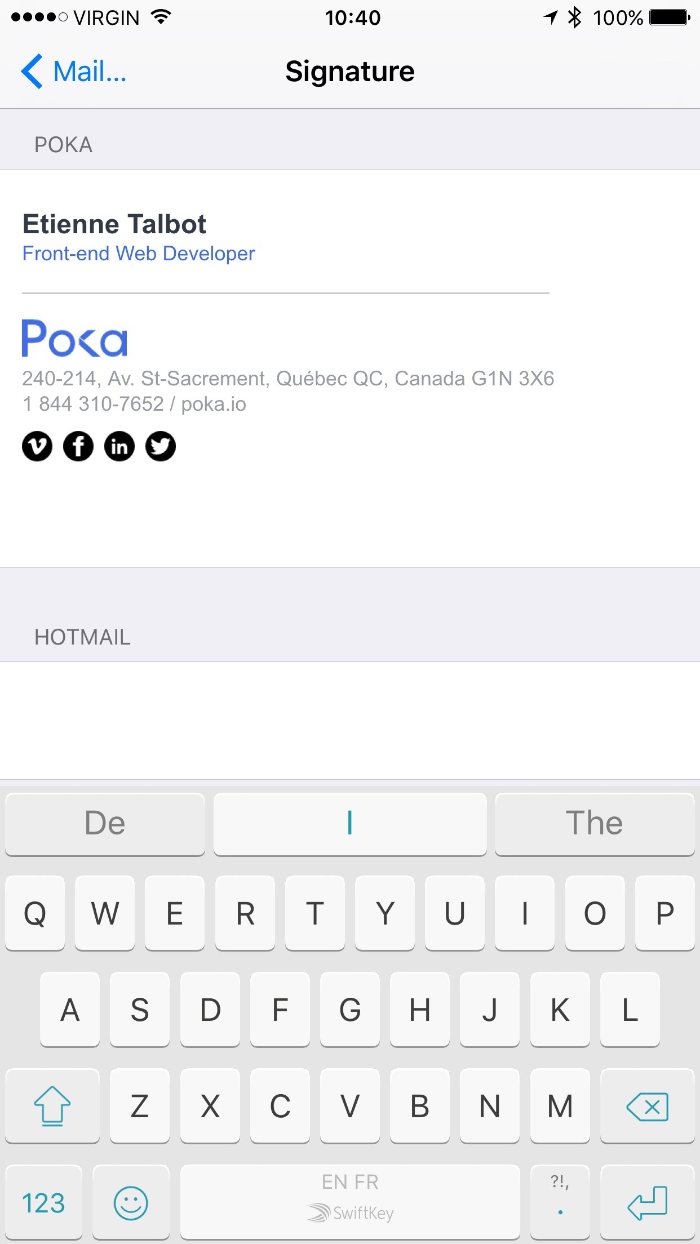
| {{ main.name }} | |
| {{ main.job }} | |
| {{ main.phone }} | |
|
|
|
 |
|
| 130-214, Av. St-Sacrement, Québec QC, Canada G1N 3X6 1 844 310-7652 / poka.io |
|

 |
|
 |
|
| Privacy Policy |
Signature code
Copy this code (cmd + c or ctrl + c) and follow the instructions below!
Instructions
- Fill out the necessary fields
- Click on the box above
- Copy the selection (
cmd + corctrl + c) - Paste it in the Signature box in Gmail's Settings page.
Apple Mail instructions
1. Create a temporary signature
Please note that if you already have a signature, you can skip to step 2.
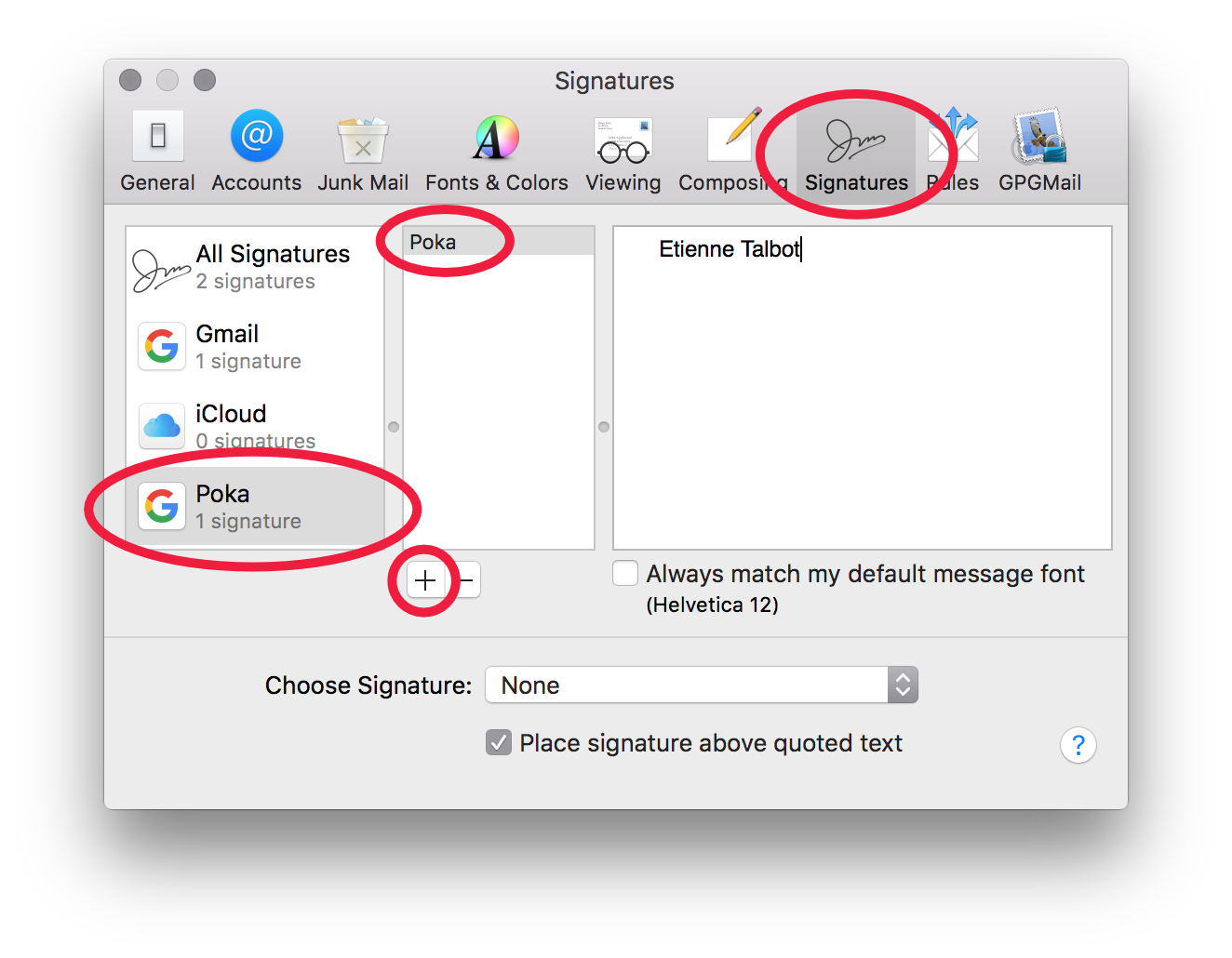
Open Mail and go to the Preferences menu cmd + ,. Click on the Signatures tab and select your Poka mail account. Click on the plus sign to add a signature. Name it Poka.
Don't worry about the contents of your signature yet. This step exists only to create a signature file.
Quit Mail! cmd + q. This is very important!
2. Find your signature file
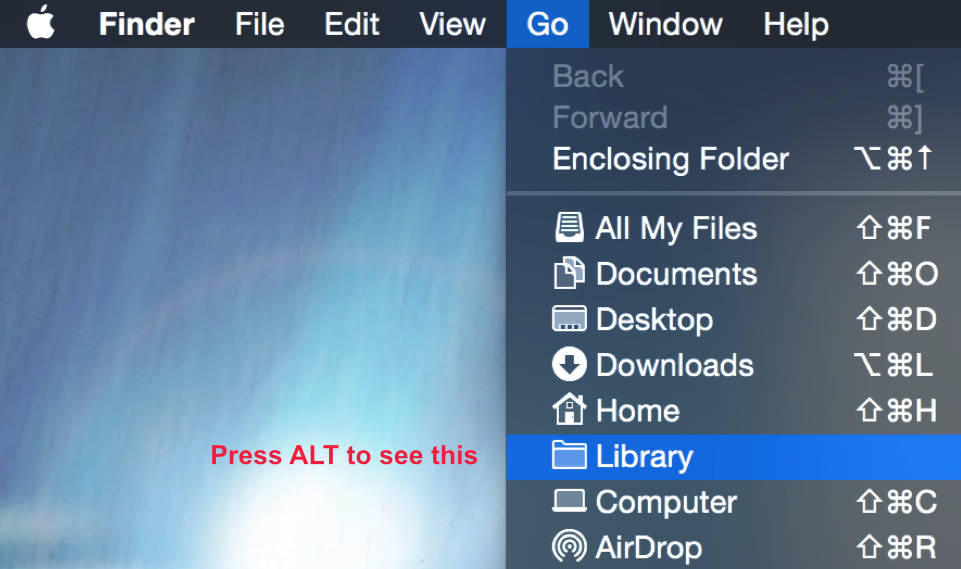
In the Finder, click on the Go menu and then press Option (Alt). Between "Home" and "Computer" will appear Library. Click it.
Navigate through the folders to Mail/V3/MailData/Signatures.
Alternatively, you can access the desired folder using this path ~/Library/Mail/V3/MailData/Signatures/
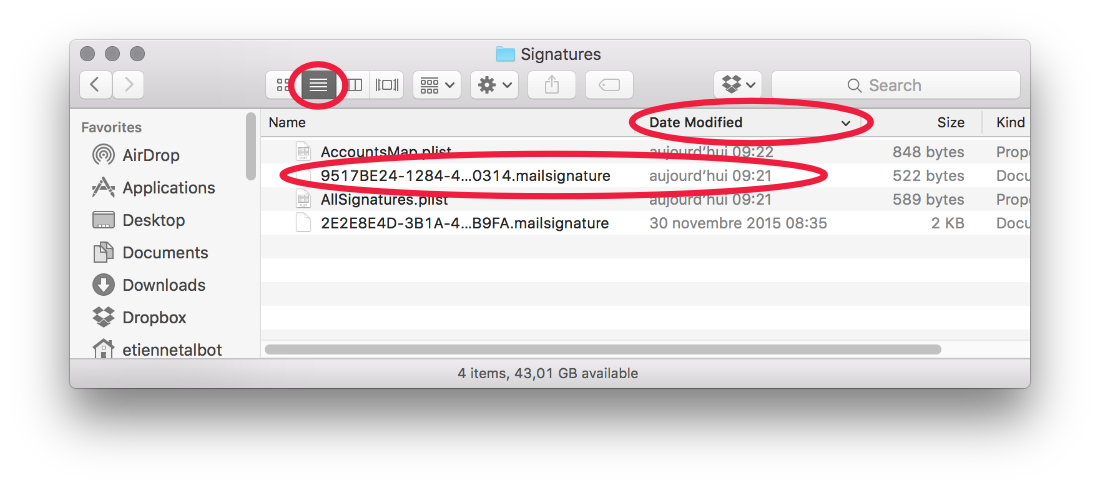
Put your Finder window in list mode and order the files by Date Modified. Find the file with the .mailsignature extension that has the most recent modification.
If you're updating a previously set signature, you must first unlock it (see step 4 and uncheck the checkbox). Be aware that it's also possible that the most recently modified signature isn't the one you want to update.
Open the file in your favourite text editor (not Word).. If you don't have a favorite text editor, use TextEdit.
3. Carefully place your code
Make sure the Mail application is closed before proceeding.
Replace the second part of the file by the code you copied on this page. Make sure not to replace the first 5 lines that are already in the file.
IMPORTANT!
Make sure the Content-Transfer-Encoding (line 1) is set to 7bit and that the charset (line 3) is set to utf-8. If it's not the case, change the values.
Save.
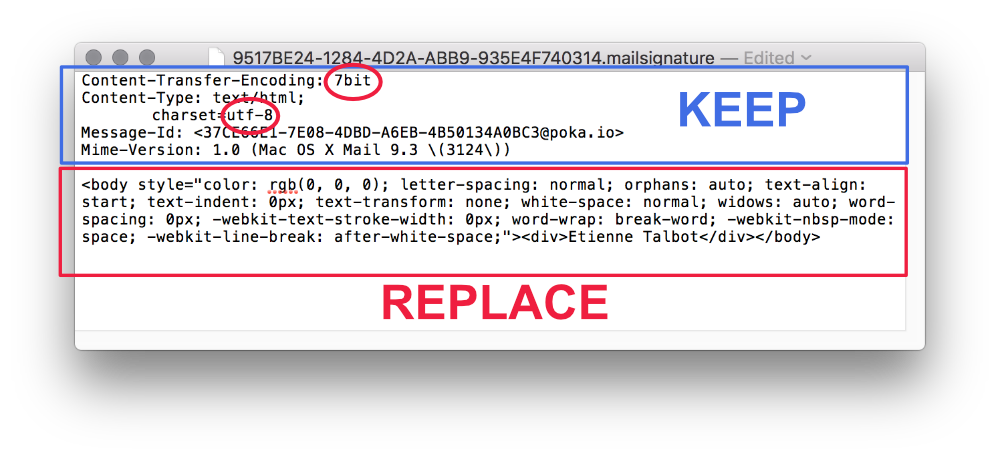
4. Lock the file
Select your signature file again in the Finder. Right click on it and click Get info cmd + i. In the General options, check the Locked option.
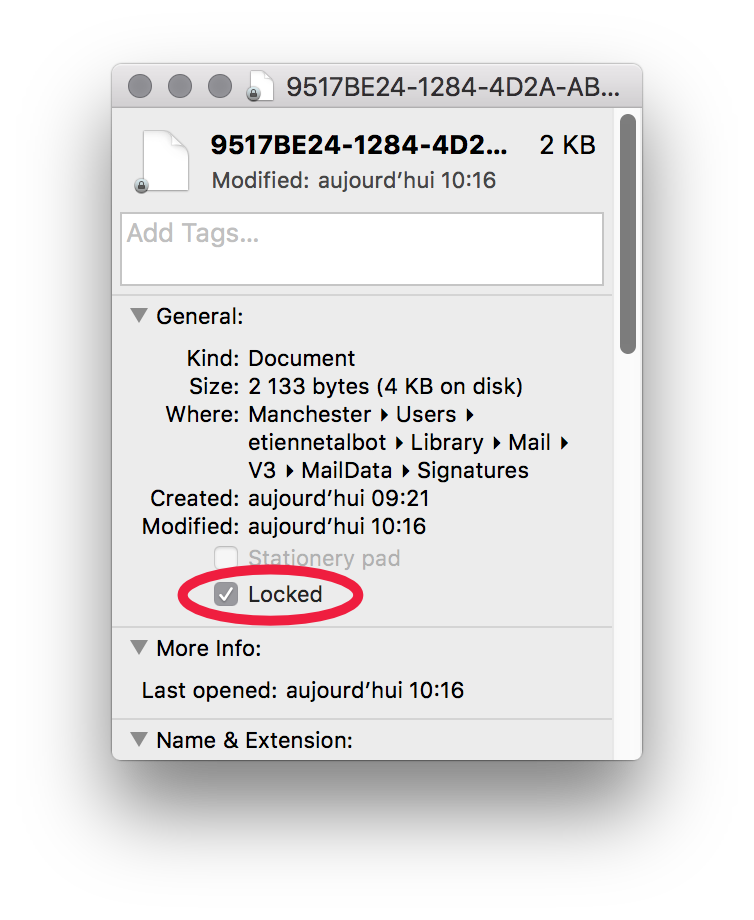
5. Open Mail
That's all, folks!
Troubleshoot
My signature displays weird characters!
Make sure the first line of your file is: Content-Transfer-Encoding: 7bit
Make sure the third line of your file is: charset=utf-8
On iOS Mail (iPhone/iPad)
You must have your signature configured somewhere else before proceeding. Send yourself an email with your signature. You'll copy your signature from that email on iOS.
1. Copy your own signature
Open an email containing your own signature. Select it and copy it.
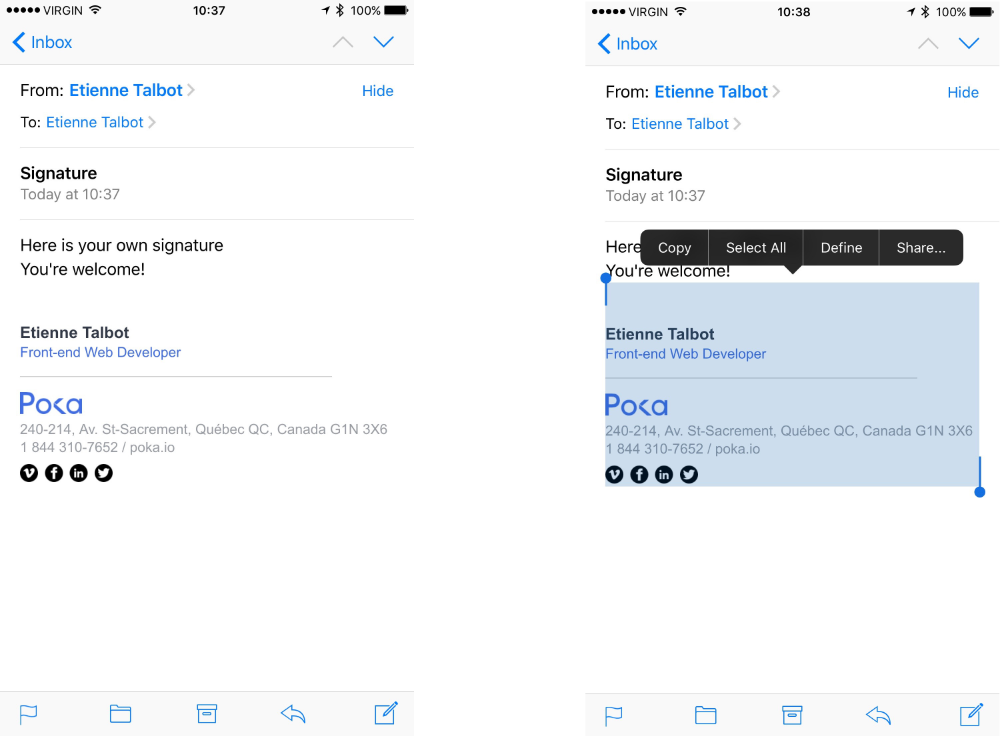
2. Paste it as a signature
Go in the Settings app, then in Mail, Contacts, Calendars. Scroll down and you'll see the